Stream Reolink Duo 2 PoE 4K 180° Panoramic Camera to IDrive e2
Ultra-wide dual-sensor 4608x1728 panoramic camera with single-stream FTP upload. Follow our step-by-step setup guide below to stream footage directly to IDrive e2 via FTP/S with Rilavek as the pipe — zero on-prem NVR required.
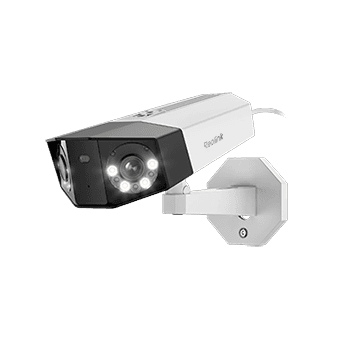
Your Reolink Duo 2 PoE uploads footage offsite in real time directly to IDrive e2. Intruders cannot steal or destroy evidence by seizing on-prem recorder hardware.
Store Reolink Duo 2 PoE recordings in IDrive e2 on your own terms. Apply automated bucket lifecycle rules to roll over or archive clips after 30, 90, or 365 days.
Rilavek ingests native FTP/S streams from your Reolink Duo 2 PoE and writes them directly to IDrive e2 via multipart S3 PUTs with zero disk writes.


How to Stream Reolink Duo 2 PoE 4K 180° Panoramic Camera to IDrive e2
Follow these 6 steps to provision your object storage, configure Rilavek’s Data Store, Sender, and Ingestion Pipe, enter your camera firmware settings, and establish automated S3 retention rules.
Set Up Your  IDrive e2 Bucket & Generate API Keys
Configure your target bucket and API credentials inside IDrive e2 so Rilavek can stream motion clips and continuous video directly into your storage.
- In the IDrive e2 Dashboard, create a private storage bucket.
- Navigate to Access Keys > Create Access Key.
- Assign Read/Write permissions restricted to your surveillance bucket.
- Copy your Access Key ID, Secret Key, and regional S3 endpoint URL.
Add Your Data Store in Rilavek
In your Rilavek dashboard, navigate to Data Stores > New Data Store, select your provider, and enter your S3 credentials. Rilavek verifies the connection with an automated write-probe before saving.
Add New Data Store
Create a Camera Sender in Rilavek
Go to Senders in the Rilavek sidebar and click New Sender. A Sender represents the hardware identity of your Reolink Duo 2 PoE 4K 180° Panoramic Camera and generates a dedicated device-level password.
Create New Sender
Must be at least 6 characters, lowercase, start with a letter/underscore, and contain only letters, numbers, hyphens, or underscores.
Secure credentials will be automatically generated for this sender.
Sender Credentials
Create & Configure Your Ingestion Pipe in Rilavek
Go to Pipes in the sidebar and click Create Pipe. Configure the 4 core sections of your pipeline: General (Pipe ID), Inputs (FTP), Access Control (Sender permission), and Destinations (Data Store).
1General Settings (Pipe ID)
Every pipeline in Rilavek is assigned an immutable, globally unique Pipe ID (e.g. p_cctv9x). This ID acts as an isolated ingestion channel that segregates audit logs, real-time transfer metrics, and storage routing. It also forms the second half of your scoped camera FTP login username (username@p_cctv9x).
Pipe ID
Use this ID to identify this pipe in logs. Combine it with the sender username for complete authentication details.
2Inputs (FTP / FTPS Ingress)
The Inputs configuration defines how camera files enter Rilavek. Enabling the FTP Ingress input provides a persistent, high-availability ingestion server (ftp.rilavek.com) compatible with active and passive FTP modes, explicit TLS negotiation, and standard CCTV firmware video push routines.
Inputs
Enable inputs to receive data.
FTP Ingress
Endpoint enabled. Connect using your Sender credentials.
Example: cam_duo2poe@p_cctv9x
Use the password configured for the specific Sender.
3Access Control (Sender Authorization)
Access Control prevents unauthorized uploads by enforcing a zero-trust boundary on the ingestion pipe. Only explicitly authorized Senders (such as Reolink Duo 2 PoE 4K 180° Panoramic Camera) can authenticate and stream video into this pipe. Any requests with unassigned credentials are rejected at the network edge.
Access Control
Restricts who can upload to this pipe.
Individual Senders
Grant or revoke pipe access for specific individual senders.
4Destinations (Target Cloud Storage Routing)
The Destinations section routes video clips to your target cloud storage provider. Linking your configured Data Store routes all received footage directly to your IDrive e2 bucket (cctv-reolink-recordings). Video files are committed on-the-fly via parallel multipart S3 PUTs without intermediate disk caching.
Destinations
This is where we send your files to.
Configure FTP, Motion Detection & Linkage Method in Reolink Duo 2 PoE 4K 180° Panoramic Camera Firmware
Open your camera's web configuration page in your browser at its local LAN IP address and complete the steps below:
Step 5AConfigure FTP Streaming Credentials
Click Device Settings > Surveillance > FTP.
Turn on the FTP toggle switch, then click FTP Settings to expand the configuration card. Enter your Rilavek Ingestion Gateway server, port 21, scoped username, sender password, and remote directory. Enable 'Don't allow plain unencrypted FTP' for FTPS security.

FTP Settings
Server
cam_duo2poe@p_cctv9x (Sender@Pipe).To use encrypted data transfer, please configure FTPS on FTP server.
Directory
reolink/duo-2-poe).Upload
Video
Image
Step 5BConfigure FTP Upload Schedule & Smart AI Detection
Click Device Settings > Surveillance > FTP > Schedule.
Under Schedule > Alarm, select your desired smart detection triggers (Person, Vehicle, Animal) to eliminate false alarms. Ensure the 24-hour weekly grid blocks are highlighted in blue for active monitoring.
FTP Settings
Schedule
Step 5CSave Configuration & Verify FTP Connection (Test & Ingestion Check)
Click Device Settings > Surveillance > FTP > Save & Test.
Click 'Save' (1) first to store your credentials and schedule in the camera memory, then click 'Test' (2) to verify live FTP communication with Rilavek. A green confirmation badge verifies end-to-end cloud bucket streaming.
FTP Settings
Reolink Firmware Notes & Best Practices
Model-specific nuances, recommended settings, and verified workarounds for the Duo 2 PoE
The 8MP image is stitched into a seamless 32:9 aspect ratio. The high resolution requires consistent bandwidth during continuous recording.
Verify Ingestion
Click Test in your camera's FTP settings or trigger a test recording transfer. In your Rilavek dashboard, navigate to Pipes > your pipeline > Transfers tab to inspect incoming files as video clips stream into IDrive e2.
| FILE | SENDER | SIZE | DATE | STATE |
|---|---|---|---|---|
reolink/duo-2-poe/2026-09-10/ch01_143000.mp4 | cam_duo2poe | 18.4 MB | Sep 10, 14:30 | Success |
reolink/duo-2-poe/2026-09-10/ch01_142500.mp4 | cam_duo2poe | 21.2 MB | Sep 10, 14:25 | Success |
reolink/duo-2-poe/2026-09-10/ch01_142000.mp4 | cam_duo2poe | 19.7 MB | Sep 10, 14:20 | Success |
Common questions
Does the Reolink Duo 2 PoE 4K 180° Panoramic Camera require an on-site NVR to stream to IDrive e2?
No. The Reolink Duo 2 PoE 4K 180° Panoramic Camera has built-in FTP client firmware. It connects directly to Rilavek's cloud bridge on port 21, streaming video chunks into your IDrive e2 bucket without requiring a local NVR or PC.
How does retention work on IDrive e2?
You define exact retention policies (e.g. 30, 90, or 365 days) directly in your IDrive e2 bucket using standard S3 Lifecycle expiration rules. Footage is never auto-overwritten by proprietary cloud caps.
What happens if my internet connection drops?
If your Duo 2 PoE has a local MicroSD card installed, it records motion events locally and retries the FTP upload once connectivity is restored.
Stream Reolink Duo 2 PoE 4K 180° Panoramic Camera to IDrive e2
Create your free Rilavek ingestion pipe in seconds. No NVR hardware, no proprietary camera cloud subscriptions, and 100% data ownership in your private storage bucket.
Free plan includes 10GB of transfer. No credit card required.