Two things happen in every security camera installation: someone sets up local recording to an NVR or SD card, and eventually, someone steals or destroys that recorder. The footage you needed most is gone with the hardware.
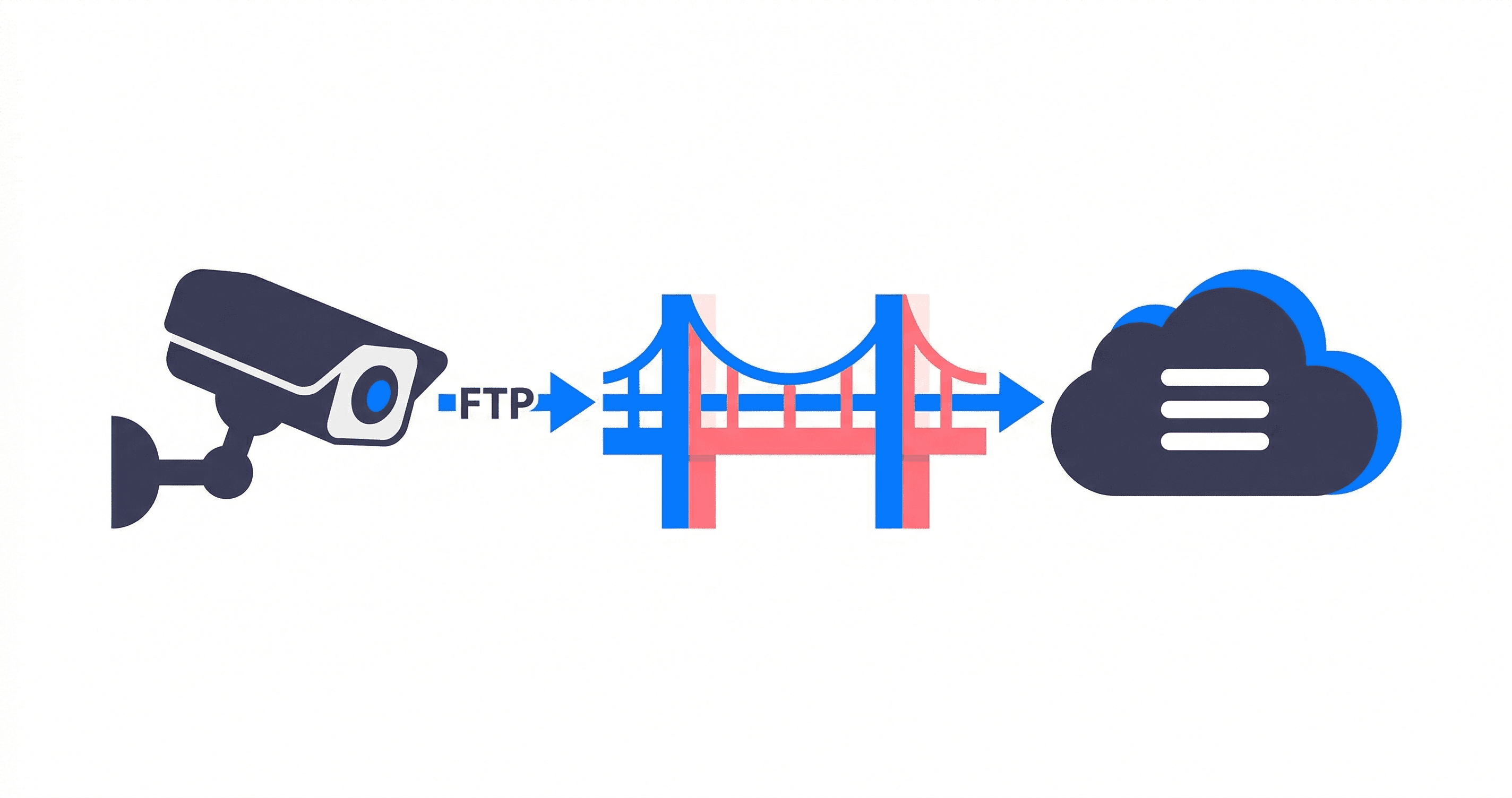
Cloud storage fixes this. Your cameras upload footage offsite in real time. The problem is that most IP cameras from Hikvision, Dahua, Reolink, and Axis were built to speak FTP. Not HTTPS. Not S3 APIs. FTP. And S3 buckets don't accept FTP connections.
The standard workaround is running a local FTP server that receives footage and then uploads it to S3 with a cron job or sync script. That means maintaining a Linux box, patching it, monitoring disk space, and restarting the sync daemon when it inevitably crashes at 3 AM on a Saturday. You've replaced the stolen NVR problem with a server administration problem.
There's a cleaner path.
The Architecture
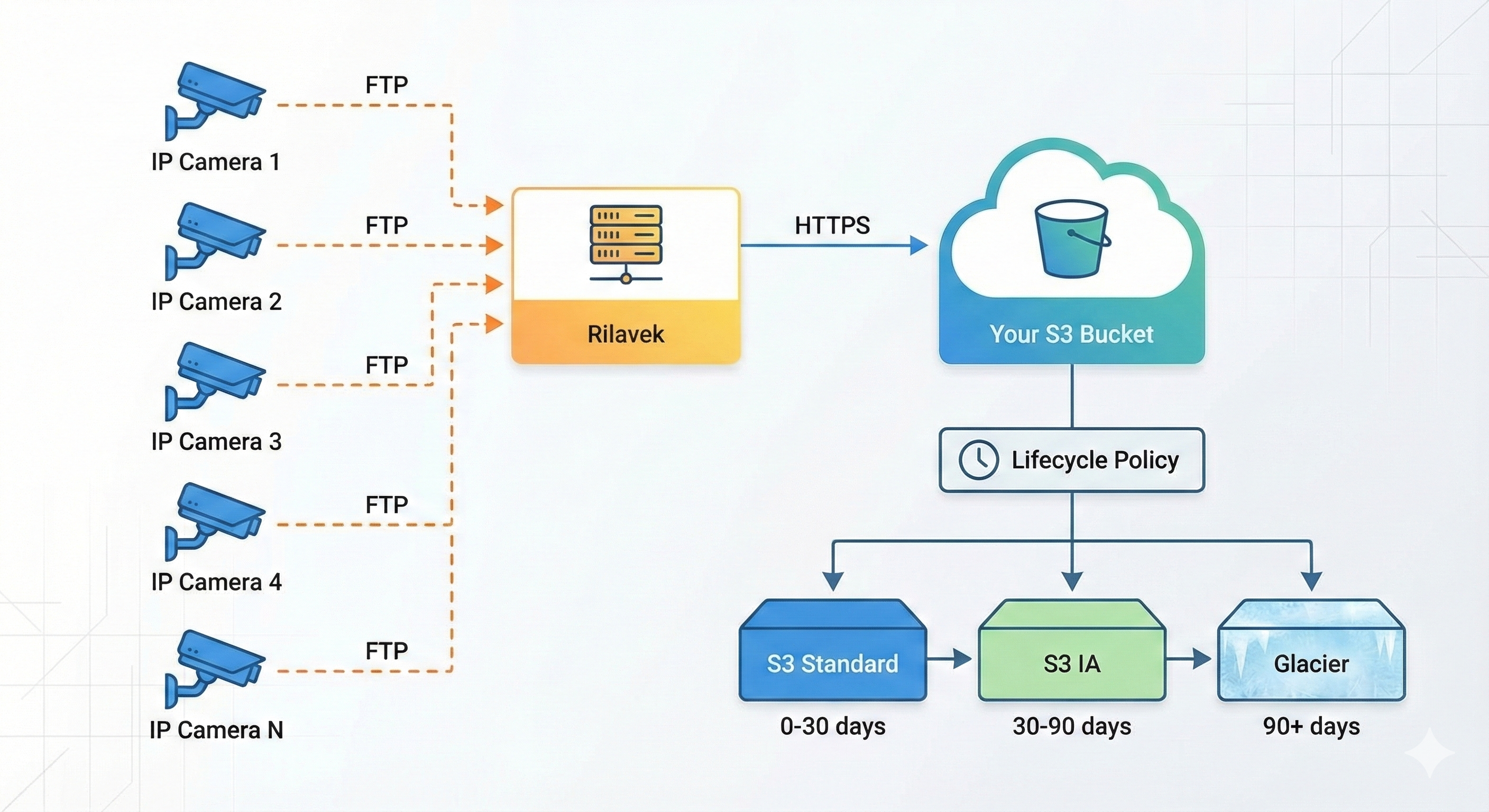
Each camera gets a unique Sender credential. Each uploads to the bridge over FTP (port 21). The bridge streams directly to your S3 bucket over HTTPS. No local FTP server. No NVR. No disk to manage.
The S3 lifecycle policy handles retention automatically: recent footage stays in S3 Standard for fast access, transitions to Infrequent Access after 30 days, moves to Glacier after 90 days, and expires after however long your retention requirements dictate.
Camera Configuration (Step by Step)
The FTP settings live in roughly the same place across all major camera brands. The menu paths vary, but the concept is identical.
Hikvision
- Open the camera's web interface (typically
http://<camera-ip>) - Navigate to Configuration → Network → Advanced Settings → FTP
- Enter the FTP server details:
- Server Address:
ftp.rilavek.com - Port:
21 - Username: Your Sender username (e.g.,
cam_lobby@p_warehouse01) - Password: Your Sender password
- Directory: Leave as
/or use a subfolder like/cam-lobby/
- Server Address:
- Click Test to verify the connection.
- Navigate to Configuration → Event → Basic Event → Motion Detection
- Enable motion detection, draw the detection area, and under Linkage Method, check Upload to FTP/NAS.
The Hikvision gotcha: Most Hikvision cameras upload snapshots (JPEG images) to FTP on motion events, not video clips. If you need continuous video recording, you'll need to enable "Capture Parameters" under the FTP settings and set a short interval (e.g., 1 second) for event-triggered captures. Some newer Hikvision models support video clip FTP upload, but check your specific firmware.
Dahua
- Open the camera's web interface
- Navigate to Setting → Event → Storage → Destination → Path
- Select FTP-Save as the storage
- Under Setting → Event → Storage → Destination → FTP, configure:
- Server Address:
ftp.rilavek.com - Port:
21 - Username: Your Sender username
- Password: Your Sender password
- Remote Directory:
/
- Server Address:
- Click Test to verify.
- Under motion detection settings, ensure Record Channel and Snapshot are configured to upload to FTP.
The Dahua gotcha: Dahua's "Auto Upload" function only triggers on events (motion, alarm input, etc.), not on a continuous schedule. If you want continuous uploads, you need the "General" recording schedule configured, and even then, FTP uploads are event-driven on most Dahua firmware versions. Plan for motion-triggered uploads, not 24/7 streaming.
Reolink
- Open the Reolink Client or web interface
- Navigate to Device Settings → Storage → FTP
- Enable Upload to FTP Server
- Configure:
- FTP Server:
ftp.rilavek.com - Port:
21 - Username: Your Sender username
- Password: Your Sender password
- Save Path:
/
- FTP Server:
- Set upload type: Image or Video (model-dependent)
- Choose trigger: Motion Detection or Schedule
- Click Test FTP to verify.
The Reolink gotcha: Most Reolink cameras do not support SFTP or FTPS natively. They speak plain FTP only. Some newer battery-powered models don't support FTP at all (they use Reolink Cloud exclusively). Check your model's spec sheet before planning the deployment.
Generic (Axis, Vivotek, Hanwha, etc.)
Most professional IP cameras follow the same pattern:
- Find the FTP settings under Network or Storage in the camera's web interface.
- Enter server, port, credentials, and path.
- Link an event (motion, analytics trigger, alarm input) to the FTP upload action.
- Test the connection.
If the camera supports FTPS (Explicit TLS on port 21), use it. The footage will be encrypted in transit. If the camera only supports plain FTP, it still works, but be aware that the footage travels unencrypted between the camera and the bridge. For most deployments on a local network, this is acceptable. For cameras uploading over the internet, consider a VPN tunnel.
Setting Up the Bridge
On the Rilavek side, each camera gets its own Sender credential for audit isolation. Here's the setup:
1. Create a Pipe for Surveillance Footage
Create a Pipe pointing to your S3 bucket. This is the data store where all camera footage will land.
- Protocol: FTP (port 21)
- Data Store: Your S3 bucket (e.g.,
s3://company-surveillance/)
2. Create One Sender Per Camera
Each camera should have its own Sender credential. This matters for three reasons:
- Audit trail: You can track which camera uploaded which file.
- Isolation: If one camera's credentials are compromised, you revoke that single Sender without affecting the rest.
- Organization: Files from each camera can land in separate prefixes (e.g.,
/lobby/,/parking-lot/,/warehouse-east/).
Example Sender naming convention:
| Camera | Username |
|---|---|
| Lobby Entrance | cam_lobby@p_surveillance |
| Parking Lot A | cam_parking_a@p_surveillance |
| Warehouse East | cam_warehouse_east@p_surveillance |
| Server Room | cam_server_room@p_surveillance |
3. Configure Webhook Notifications (Optional but Recommended)
Set up a webhook endpoint that fires on every completed upload. Use this to:
- Trigger alerts when specific cameras upload outside expected hours (a camera motion event at 3 AM warrants a notification).
- Feed an analytics pipeline that counts motion events per camera over time.
- Detect camera failures by monitoring for gaps in expected upload patterns. If a camera that normally uploads 50 times per day suddenly goes silent, something is wrong.
S3 Lifecycle Policy for Surveillance Retention
Storage costs matter when you're ingesting footage from dozens of cameras 24/7. The key insight is that most surveillance footage is never accessed. You only need it when something happens. The cost optimization is aggressive: keep recent footage hot, archive everything else.
Recommended Lifecycle Configuration
{
  "Rules": [
    {
      "ID": "surveillance-lifecycle",
      "Status": "Enabled",
      "Filter": { "Prefix": "" },
      "Transitions": [
        {
          "Days": 30,
          "StorageClass": "STANDARD_IA"
        },
        {
          "Days": 90,
          "StorageClass": "GLACIER"
        },
        {
          "Days": 365,
          "StorageClass": "DEEP_ARCHIVE"
        }
      ],
      "Expiration": {
        "Days": 730
      }
    }
  ]
}
This policy does the following:
| Age | Storage Class | Cost (approx. per TB/month) | Retrieval |
|---|---|---|---|
| 0-30 days | S3 Standard | ~$23 | Instant |
| 30-90 days | S3 Standard-IA | ~$12.50 | Instant |
| 90-365 days | Glacier Flexible Retrieval | ~$3.60 | Minutes to hours |
| 365-730 days | Glacier Deep Archive | ~$0.99 | 12 hours |
| 730+ days | Deleted | $0 | N/A |
For most commercial surveillance, 2 years of retention is sufficient. Adjust the expiration to match your industry requirements, lease terms, or insurance policy stipulations.
Cost-saving gotcha: Glacier has a minimum storage duration of 90 days. If you transition objects to Glacier and then delete them before 90 days, you still pay for 90 days. Same for Deep Archive (180 days minimum). The lifecycle policy above respects these minimums.
Storage Cost Estimates
Here's what storage costs look like for a typical 8-camera deployment uploading motion-triggered snapshots:
Assumptions:
- 8 cameras uploading motion-triggered snapshots
- Average 200 snapshots per camera per day (motion events during business hours)
- Average file size: 150KB per snapshot (1080p JPEG)
- Daily new data: ~240MB (200 × 150KB × 8)
- Monthly new data: ~7.2GB
| Retention Period | Monthly Cost (AWS us-east-1) |
|---|---|
| Current month (Standard) | ~$0.17 |
| Months 2-3 (Standard-IA) | ~$0.18 |
| Months 4-12 (Glacier) | ~$0.23 |
| Total Year 1 | ~$6.96 |
Under $7 per year for 8 cameras. That's less than a single month of most "cloud camera" subscriptions.
If your cameras upload video clips instead of snapshots, multiply the storage by 50-100x. A 10-second 1080p H.264 clip is typically 2-5MB. At 200 clips per day across 8 cameras, you're looking at ~24GB/month, and the cost scales to roughly $70/year. Still trivially cheap compared to a dedicated NVR with redundant drives.
Why Not Just Use the Camera Vendor's Cloud?
Hikvision has Hik-Connect. Reolink has Reolink Cloud. Dahua has DMSS. They all offer cloud recording. Here's why you might not want to use them:
Vendor lock-in. Your footage lives on their servers. If you switch camera brands, your archive doesn't come with you.
Data sovereignty. Some vendor clouds store data in regions that may not comply with your local data residency requirements. With S3, you pick the region.
Retention control. Vendor cloud plans typically offer 7, 30, or 60 days of retention. If you need 2 years (insurance, legal, compliance), you either pay premium rates or can't do it at all. With S3 + Glacier, 2-year retention costs almost nothing.
Integration. Vendor clouds are closed ecosystems. Need to trigger a Lambda function when a camera detects motion? Need to feed footage into a computer vision model? Need to cross-reference timestamps with your access control system? You need the raw files in a bucket you control.
Pricing transparency. Vendor cloud pricing is per-camera, per-month. It starts cheap and gets expensive at scale. S3 pricing is per-GB, regardless of how many cameras you have.
Network Considerations
Bandwidth Planning
Motion-triggered snapshots use minimal bandwidth. Even 8 cameras uploading 200 snapshots per day (at 150KB each) consume only ~240MB/day, which is negligible on any modern internet connection.
Video clip uploads require more planning. An 8-camera system uploading 10-second clips on motion could generate 4-8GB per day. On a 10 Mbps upload connection, this takes 50-100 minutes to transfer. For sites with slower connections, consider reducing clip length or resolution.
Camera VLANs
Isolate camera traffic on a dedicated VLAN. IP cameras are notoriously under-patched and have been involved in multiple botnet infections (Mirai being the most famous). A dedicated VLAN limits the blast radius if a camera is compromised.
The bridge connection (outbound FTP from the camera VLAN to ftp.rilavek.com on port 21) should be the only permitted outbound traffic from the camera VLAN. Block everything else.
Handling Intermittent Connectivity
IP cameras with FTP upload typically retry failed transfers automatically. If the internet connection drops, the camera buffers to its local SD card or NVR and retries when connectivity returns. This is standard behavior for Hikvision, Dahua, and Reolink cameras.
For remote sites with unreliable connectivity (construction sites, agricultural facilities, temporary event venues), ensure cameras have SD card slots enabled as a local buffer. The camera will upload from the SD card when the FTP connection is available.
Multi-Site, Single Bucket
For organizations with cameras across multiple locations (retail chains, property management companies, distributed warehouses), all cameras can point to the same Rilavek Pipe. Use the Sender naming convention to organize footage by site:
| Site | Camera | Sender Username | S3 Path |
|---|---|---|---|
| Store #42 | Front Door | store42_front@p_cctv | /store42/front/ |
| Store #42 | Back Office | store42_back@p_cctv | /store42/back/ |
| Store #89 | Entrance | store89_entrance@p_cctv | /store89/entrance/ |
| Warehouse | Loading Dock | wh_dock@p_cctv | /warehouse/dock/ |
One S3 bucket. One lifecycle policy. One audit log. Ten sites or a hundred sites, the architecture doesn't change.
With Rilavek acting as the bridge, your cameras upload to a managed FTP endpoint, and footage streams directly to your bucket without touching intermediate disk. No FTP servers to maintain, no NVR hardware to replace, and no footage lost when someone walks out with the recorder.
Start for free on Rilavek (10GB/month of transfer included, no credit card required).
Technical Reference & Next Steps
- FTP Protocol Details: Review port specifications, passive mode settings, and timeout handling in our FTP Source Documentation.
- Storage Configuration & IAM: Set up scoped S3 bucket policies and permissions in our S3 Data Stores Guide.
- Automated Surveillance Alerts: Trigger Slack notifications or AI inference when a camera detects motion with our S3 Webhook Automation Guide.
- Modernizing Legacy Infrastructure: Moving away from on-premise FTP servers? Read our guide on Replacing vsftpd and ProFTPD with a Cloud-Native S3 Bridge.
- Professional Camera Tethering: Setting up wireless tethering for mirrorless cameras? See our guides for Canon, Nikon, and Sony.
Enjoyed this guide?
Share it with your network to help others scale their data pipelines.