Every security camera installation follows the same tragic arc. Someone bolts cameras to the walls, plugs them into an NVR, and confidently declares the building "covered." Then a break-in happens. The intruder spots the blinking box under the reception desk, yanks it, and walks out with your hard drives tucked under their arm. The footage you needed most? Gone with the hardware.
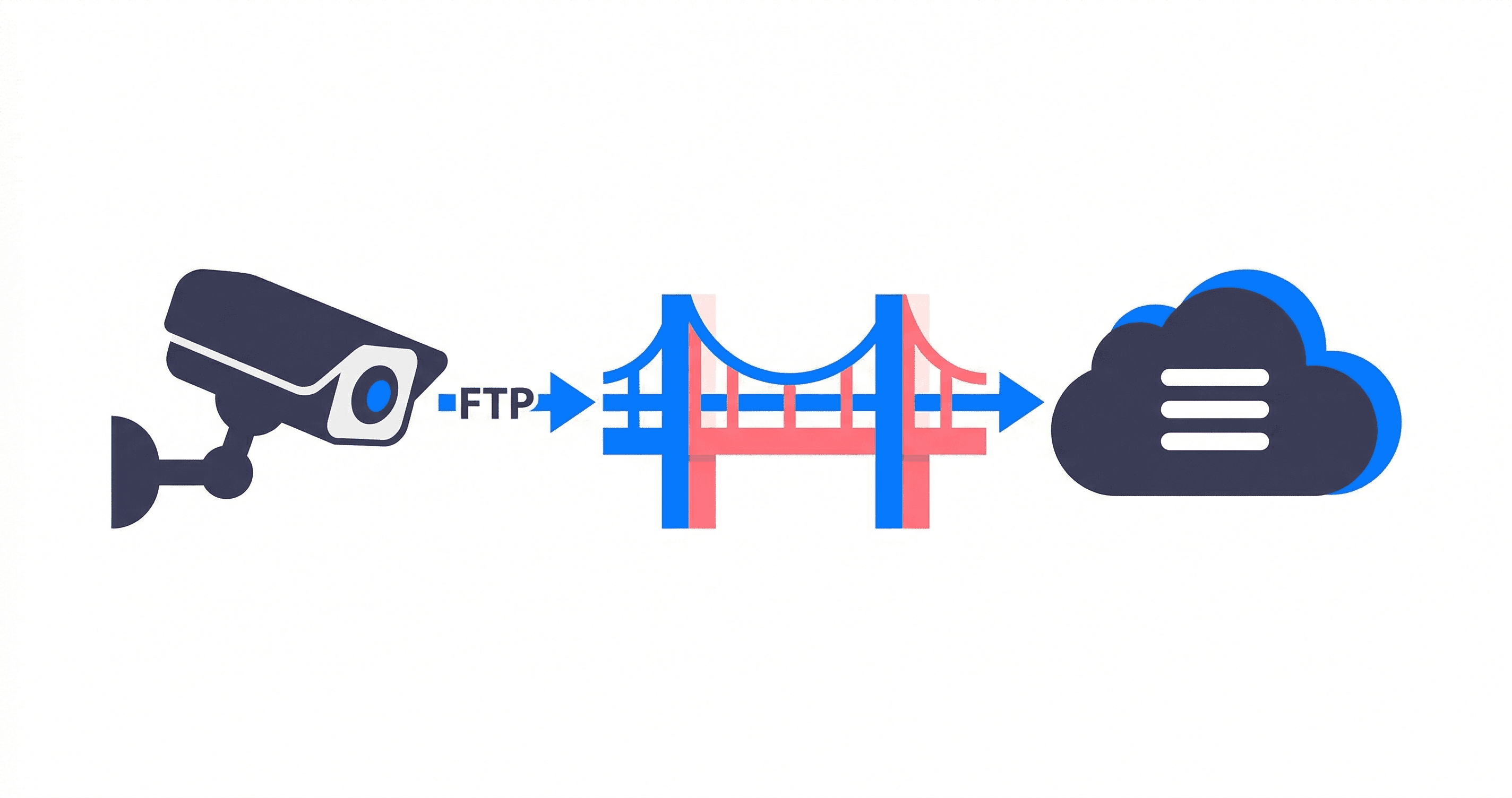
The obvious fix is pushing footage off-site to S3 as it's recorded. But here's where things get messy. Your cameras don't speak S3. They can't sign AWS SigV4 requests. They don't run the AWS SDK. What they do speak is FTP, a protocol that's been baked into surveillance firmware for over two decades. And S3 buckets don't accept FTP connections.
So you're stuck with a gap between what your cameras can do and where you actually want the video to land.
Most of the advice floating around falls into one of three camps: spend thousands on AWS Storage Gateway hardware appliances, cobble together a local Linux box running Docker with Rclone cron scripts, or try a fragile Python hack with OpenCV and Boto3 that crashes the instant an RTSP stream hiccups. None of these hold up in the real world. Each one trades the "stolen NVR" problem for a different headache.
This guide cuts through the noise. We'll break down why cameras can't talk to S3 natively, compare the four realistic architecture patterns, walk through production IAM policies and lifecycle configurations, and show you how to stream footage from camera firmware straight into your S3 bucket with zero intermediate storage.
The Protocol Gap: Why Your Camera Can't Talk to S3
Here's the root cause, and it's surprisingly simple.
Commercial IP cameras from Hikvision, Dahua, Reolink, Axis, Hanwha, and Amcrest run stripped-down Linux kernels on low-power system-on-chips with 64 MB to 256 MB of RAM. The firmware engineers who built these devices had one job: encode H.264/H.265 video, process motion vectors, and deliver streams over the local network. That's it.
Amazon S3, on the other hand, demands a surprisingly complex client:
- AWS Signature Version 4 (SigV4) HMAC-SHA256 request signing computed over headers and payload chunks.
- TLS 1.3 handshakes with modern cipher suites and certificate chain validation.
- HTTP/1.1 or HTTP/2 multipart upload state machines that can retry individual parts on failure.
No camera firmware includes any of that. What cameras do include are the protocols the security industry has relied on for years:
- RTSP (Real-Time Streaming Protocol): Built for live monitoring over LAN. Sends raw RTP video packets over UDP or TCP. Knows nothing about cloud object stores.
- ONVIF: An industry standard for camera discovery, PTZ controls, and stream negotiation. Again, strictly local network stuff.
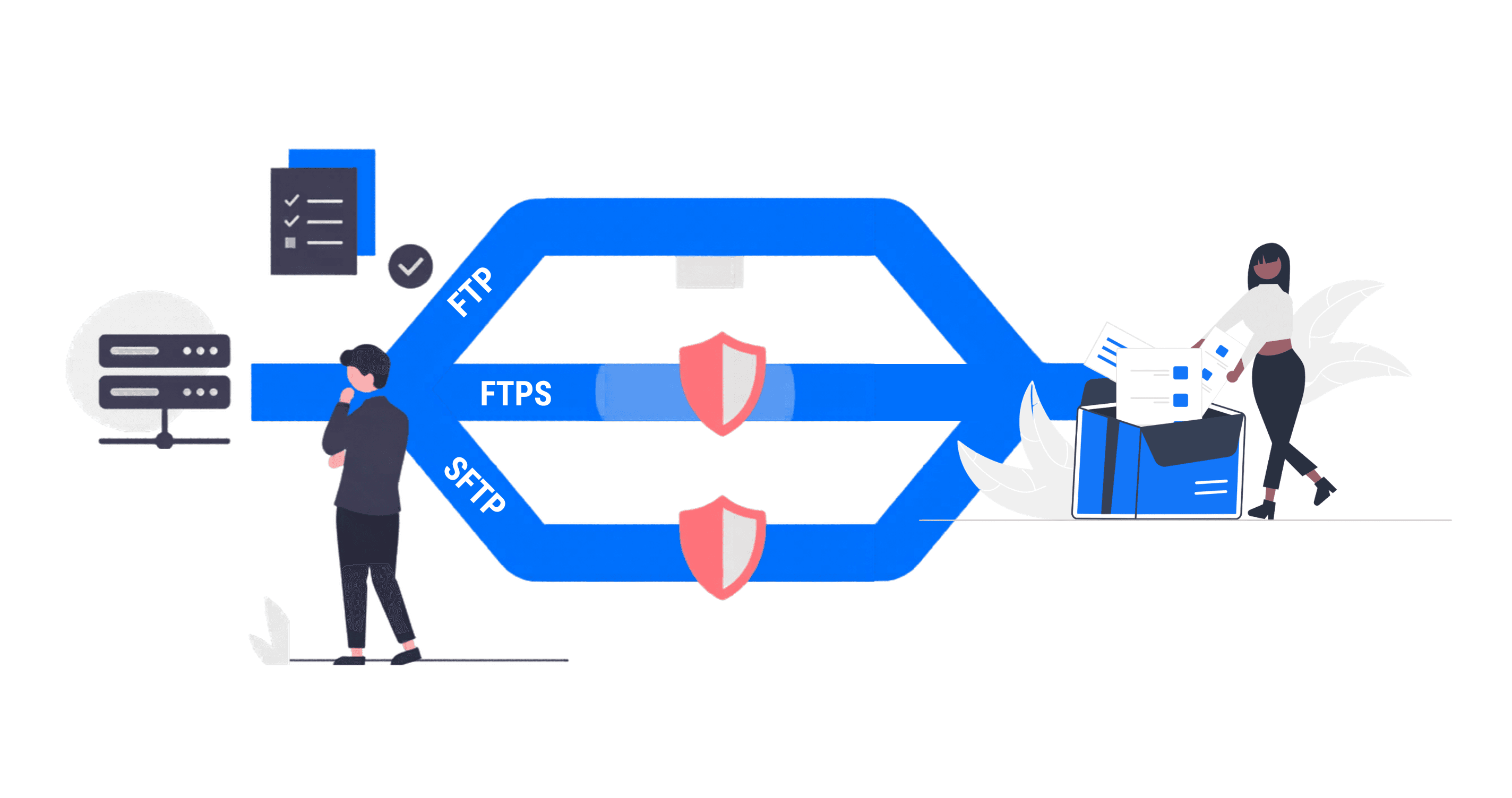
- FTP and FTPS (RFC 959 / RFC 4217): The universal file delivery protocol that's been shipping in virtually every commercial IP camera for 25 years. When motion triggers or a timer fires, the camera packages the recording into an MP4 or JPEG and pushes it out over FTP.
FTP is the common denominator. It's universally supported, well understood, and reliable. Bridging FTP into S3 is the cleanest, most battle-tested way to get camera footage into cloud storage.
The 4 Architecture Patterns Compared
Before we touch any camera configurations, let's size up the four approaches engineers typically reach for.
| Architecture Pattern | Initial Hardware Cost | Monthly Overhead | Failure Points | Survives NVR Theft? | Maintenance Burden |
|---|---|---|---|---|---|
| AWS Storage Gateway Appliance | $3,000+ per site | High (Appliance fee + Direct Connect) | Hardware appliance, local SAN | Partially (if buffered) | High (Firmware updates, SAN provisioning) |
| Amazon Kinesis Video Streams (KVS) | $0 (if camera supports KVS) | Very High ($0.0135/hr streaming + data) | Network saturation, proprietary SDK | Yes | High (Requires custom player/retrieval) |
| Local NVR / Server + Rclone Sync | $300 - $1,000 (Mini PC / Server) | Low (S3 storage only) | Disk failure, OS updates, cron silent crash | No (Stolen server loses unsynced data) | Medium to High (OS patches, script monitoring) |
| Direct Firmware Bridge (Rilavek) | $0 (Uses existing cameras) | Low (S3 storage + lightweight bridge) | Single internet connection | Yes (Footage streams direct to S3 in memory) | Zero (No on-prem compute or disks to manage) |
1. AWS Storage Gateway (S3 File Gateway)
Amazon's official recommendation. You deploy a hardware appliance (or VM) on premises that exposes an NFS or SMB file share. Your cameras or NVR write video files to this share, and the gateway asynchronously syncs everything into S3.
The problem? That appliance costs thousands per location. It needs rack space, uninterruptible power, and someone who actually enjoys firmware updates. If you're managing 30 retail shops, buying and maintaining 30 gateway appliances is a non-starter.
2. Amazon Kinesis Video Streams (KVS)
Kinesis Video Streams lets devices push continuous live video into AWS. You can attach Rekognition Video for automated object detection or facial recognition. Sounds slick on paper.
The reality is punishing. Ingestion runs about $0.0135 per stream hour, plus bandwidth and storage on top. An 8-camera system streaming continuously? That's over $75/month just for ingestion, before a single byte hits S3. And here's the kicker: almost no IP camera runs the KVS Producer SDK natively. You still need an intermediate edge box running Docker to ingest RTSP and re-stream to Kinesis. So you haven't eliminated the local hardware problem at all.
3. Local NVR / Mini PC with Rclone Cron Jobs
This is the self-hosting crowd's favorite. Deploy an Intel N100 mini PC or Raspberry Pi running Frigate, Blue Iris, Shinobi, or ZoneMinder. Cameras stream RTSP to the local software. MP4 clips land on an internal SSD. A bash script fires an Rclone sync every 5 minutes to push new files up to S3.
It breaks in three predictable ways:
- The break-in vulnerability. A thief spots the flashing lights, grabs the PC, and you lose every clip that hadn't synced yet. The most critical footage, the actual intrusion, is the footage you'll never see.
- Storage filling crashes. Internet drops for a few hours and the local drive fills up. Many NVR programs corrupt their database or simply stop recording when disk space hits zero.
- Silent script failures. Cron jobs die quietly. Tokens expire, permissions change, lockfiles hang. You typically discover the sync stopped working weeks after the incident you needed it for.
4. Cloud-Native In-Memory Bridge
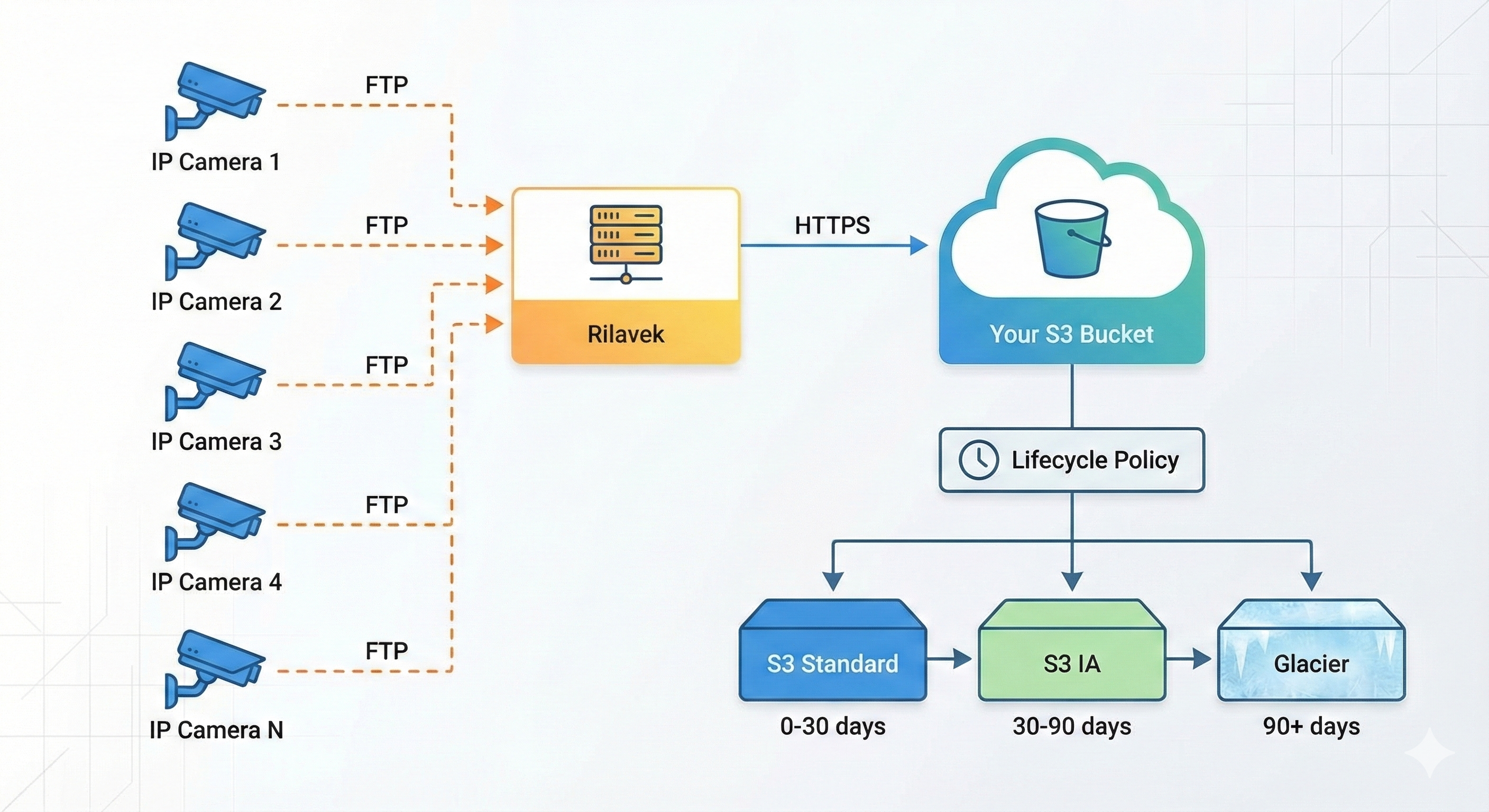
This is the approach that actually solves the original problem. Instead of adding on-prem hardware, the camera points directly to an in-memory streaming bridge like Rilavek.
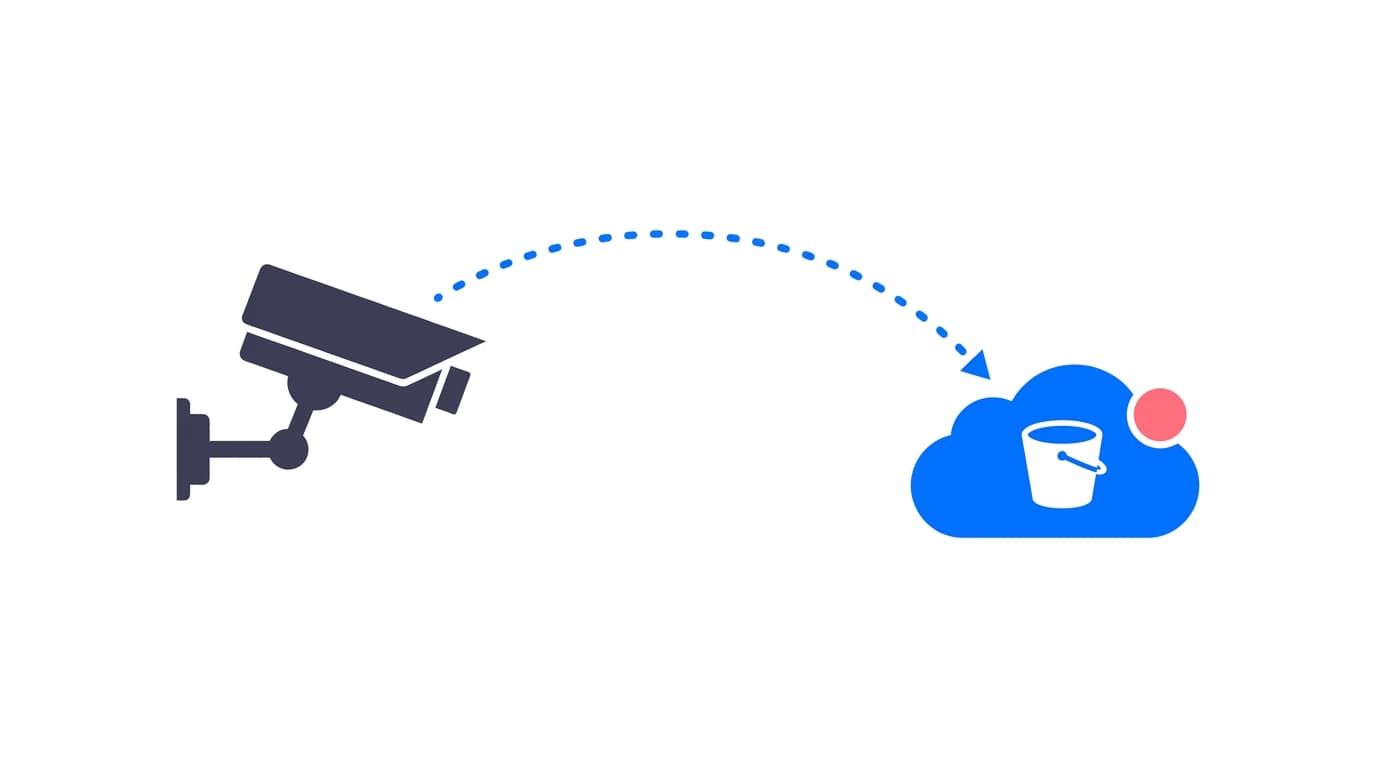
The camera uses its built-in FTP client. When a motion event fires or a continuous chunk recording triggers, the camera opens a socket to the bridge endpoint. The bridge streams those bytes straight into your AWS S3 bucket over HTTPS, in memory, without ever writing to a local disk.
Why does this win?
- Zero local hardware. No mini PCs, no NVRs, no storage appliances to buy or maintain.
- Immediate off-site protection. Bytes leave the building as they're captured. If the camera gets smashed 30 seconds into an intrusion, those first 30 seconds are already safe in your S3 bucket.
- Brand agnostic. Hikvision, Dahua, Reolink, Axis, and Amcrest cameras can all push to the exact same bucket with uniform naming conventions.
- Audit isolation. Each camera gets its own Sender credential. If an attacker yanks an outdoor camera and extracts its FTP password, they've only got write access to that specific camera's prefix. They can't touch other cameras or delete files from S3.
Step-by-Step: Wiring CCTV to Amazon S3
Let's walk through the complete setup for a production deployment.
Step 1: Create an S3 Bucket with a Scoped IAM Policy
Don't hand your cameras or ingestion bridge admin-level AWS credentials. That's asking for trouble. You want a dedicated bucket with strict, least-privilege IAM permissions.
S3 Bucket Creation
- Open the Amazon S3 Console and select Create bucket.
- Pick a descriptive name (something like
acme-corp-surveillance-prod). - Select the AWS Region closest to your physical cameras to minimize upload latency.
- Keep Block all public access enabled. Surveillance footage should never be publicly accessible.
- Enable Server-side encryption with Amazon S3-managed keys (SSE-S3).
IAM Least-Privilege Policy
Create a dedicated IAM user or role for the bridge. It only needs permission to write incoming camera data. No deleting. No listing other buckets. Nothing else.
{
  "Version": "2012-10-17",
  "Statement": [
    {
      "Sid": "AllowCameraUploadsOnly",
      "Effect": "Allow",
      "Action": [
        "s3:PutObject",
        "s3:AbortMultipartUpload"
      ],
      "Resource": "arn:aws:s3:::acme-corp-surveillance-prod/*"
    },
    {
      "Sid": "AllowBucketLocationVerification",
      "Effect": "Allow",
      "Action": [
        "s3:GetBucketLocation"
      ],
      "Resource": "arn:aws:s3:::acme-corp-surveillance-prod"
    }
  ]
}
Notice what's deliberately missing: s3:DeleteObject, s3:DeleteObjectVersion, and s3:GetObject. Even if someone intercepts the bridge credentials, your historical surveillance archive can't be wiped or exfiltrated.
For the full IAM setup walkthrough, check our S3 Permissions Guide.
Step 2: Configure the Bridge Pipe and Camera Senders
In your Rilavek Dashboard, you'll create a Pipe that connects a protocol to your S3 bucket.
- Add Data Store: Connect your AWS S3 bucket by entering your Access Key, Secret Key, Region, and bucket name.
- Create a Pipe:
- Source Protocol: FTP (or FTPS for encrypted transit)
- Destination: Your connected S3 bucket
- Generate Isolated Senders: Create one Sender identity per camera. This gives you an audit trail of which device uploaded which file, and it lets you enforce folder hierarchy in S3.
| Camera Location | Device Model | Sender Username | S3 Destination Prefix |
|---|---|---|---|
| Main Warehouse Bay | Hikvision DS-2CD2087G2 | cam_wh_bay@p_cctv | /warehouse/bay/ |
| Front Entrance Lobby | Dahua IPC-HFW5442E | cam_lobby@p_cctv | /front/lobby/ |
| Perimeter Fence North | Reolink RLC-810A | cam_fence_n@p_cctv | /perimeter/fence-n/ |
| Server Room Interior | Axis M3068-P | cam_srv_room@p_cctv | /internal/server-room/ |
If someone vandalizes the fence camera, you revoke cam_fence_n@p_cctv with a single click. Everything else keeps running untouched.
Step 3: Configure Camera Firmware
Open your camera's web interface by typing its local IP into a browser. Navigate to the network storage section.
Hikvision
- Go to Configuration, then Network, then Advanced Settings, then FTP.
- Enter the connection parameters:
- Server Address:
ftp.rilavek.com - Port:
21 - User Name:
cam_wh_bay@p_cctv - Password: Your generated Sender secret key
- Directory Structure: Select
CustomorSave in root directory
- Server Address:
- Hit Test. You should see a green confirmation that the camera reached the bridge.
- Go to Configuration, then Event, then Basic Event, then Motion Detection.
- Draw your detection grid, enable it, and under Linkage Method, check Upload to FTP/Memory Card/NAS.
- Watch out for this gotcha: Older Hikvision models upload JPEG snapshots on motion by default, not video clips. If you want actual recordings, go to Storage, then Schedule Settings, then Record Schedule, set FTP as the target, and configure your event clip duration.
For model-specific walkthroughs, see our Hikvision Cloud Storage Guide.
Dahua
- Navigate to Setting, then Storage, then Destination, then FTP.
- Check Enable.
- Fill in the server fields:
- Server Address:
ftp.rilavek.com - Port:
21 - Username:
cam_lobby@p_cctv - Password: Your Sender secret key
- Remote Directory:
/
- Server Address:
- Under Storage, then Record Mode, confirm that motion events or scheduled channels are directed to FTP.
- Click Test to verify the handshake.
Dig deeper in our Dahua Cloud Storage Guide.
Reolink
- Open the Reolink Desktop Client or camera web portal.
- Go to Settings (Gear Icon), then Surveillance, then FTP.
- Toggle FTP on.
- Enter credentials:
- FTP Server:
ftp.rilavek.com - Port:
21 - Username:
cam_fence_n@p_cctv - Password: Your Sender secret key
- FTP Server:
- Under FTP Settings:
- FTP Mode:
Passive (PASV) - Transfer Mode:
AutoorVideo First - Generate Subdirectory: Select your preferred hierarchy
- FTP Mode:
- Set your clip chunk duration (typically 2 to 5 minutes for continuous recording, or automatic cutoffs for motion events).
- Hit FTP Test.
More Reolink tips in our Reolink Cloud Storage Guide.
Axis Communications
- Open the Axis web interface. Go to System, then Events, then Recipients.
- Click Add Recipient:
- Name:
Rilavek S3 Bridge - Type:
FTP(orFTPSfor explicit TLS) - Host:
ftp.rilavek.com - Port:
21 - Username / Password: Your Sender credentials
- Name:
- Go to Action Rules and click Add.
- Set the trigger (Axis Video Motion Detection, Tampering Alarm, or whatever suits your site).
- Set the action to
Send Video CliporSend Imagesdirected at theRilavek S3 Bridgerecipient.
For professional Axis deployments, see our Axis CCTV Cloud Storage Guide.
S3 Lifecycle Management: Keeping Storage Costs Under Control
Surveillance footage piles up fast. Really fast. If you dump 8 cameras' worth of continuous 1080p video into S3 Standard and never set up cleanup rules, your AWS bill will grow relentlessly until someone in accounting starts asking uncomfortable questions.
Here's the thing, though: the vast majority of surveillance footage is never reviewed. You only pull it up when a specific incident happens, a theft, a slip-and-fall claim, an insurance dispute. So why pay premium storage prices for clips nobody will ever watch?
The 4-Tier Lifecycle Strategy
- Days 0 to 30: S3 Standard. Full availability, instant access. This is your "hot" window for reviewing recent incidents.
- Days 31 to 90: S3 Standard-Infrequent Access. Roughly half the storage cost ($0.0125/GB vs $0.023/GB in us-east-1). Still millisecond retrieval if someone reports something from last month.
- Days 91 to 365: S3 Glacier Flexible Retrieval. A massive cost drop to $0.0036/GB per month. Retrieval takes 3 to 5 hours, which is perfectly acceptable for compliance reviews or insurance claims filed months after the fact.
- Days 366 to 730: S3 Glacier Deep Archive. Under $1 per terabyte per month. This is where footage goes to wait for the rare legal subpoena.
- Day 730+: Automatic deletion. Keeps you compliant with data privacy regulations and stops storage costs from growing indefinitely.
The Lifecycle Policy JSON
Drop this into the AWS Console or apply it via CLI:
{
  "Rules": [
    {
      "ID": "SurveillanceFootageLifecycle",
      "Status": "Enabled",
      "Filter": {
        "Prefix": ""
      },
      "Transitions": [
        {
          "Days": 30,
          "StorageClass": "STANDARD_IA"
        },
        {
          "Days": 90,
          "StorageClass": "GLACIER"
        },
        {
          "Days": 365,
          "StorageClass": "DEEP_ARCHIVE"
        }
      ],
      "Expiration": {
        "Days": 730
      },
      "NoncurrentVersionExpiration": {
        "Days": 7
      },
      "AbortIncompleteMultipartUpload": {
        "DaysAfterInitiation": 2
      }
    }
  ]
}
That AbortIncompleteMultipartUpload rule is easy to overlook but surprisingly important. If a camera loses power or internet mid-upload, partial multipart chunks can linger in your bucket invisibly. You won't see them in the console, but you'll see them on the bill. This rule cleans them out after 48 hours.
Bandwidth and Storage: What Will This Actually Cost?
Let's talk real numbers. How much data do your cameras actually produce, and what's the S3 bill going to look like?
The biggest variable is your video codec. If you're still running H.264 on cameras that support H.265, you're burning roughly double the bandwidth and storage for no reason. Switch to H.265 wherever you can.
Bitrate and Daily Volume Reference
| Resolution | Codec | Frame Rate (FPS) | Bitrate (Kbps) | Daily Volume (24/7) | Monthly Volume (24/7) | Daily Volume (Motion, 20% active) |
|---|---|---|---|---|---|---|
| 1080p (2 MP) | H.264 | 15 fps | 2,048 Kbps | 21.6 GB | 648 GB | 4.3 GB |
| 1080p (2 MP) | H.265 | 15 fps | 1,024 Kbps | 10.8 GB | 324 GB | 2.1 GB |
| 2K (4 MP / 5 MP) | H.265 | 15 fps | 2,048 Kbps | 21.6 GB | 648 GB | 4.3 GB |
| 4K (8 MP) | H.264 | 20 fps | 8,192 Kbps | 86.4 GB | 2,592 GB | 17.3 GB |
| 4K (8 MP) | H.265 | 20 fps | 4,096 Kbps | 43.2 GB | 1,296 GB | 8.6 GB |
Real-World Example: 8 Cameras on Motion Detection
Take a typical office with 8 commercial 4 MP cameras running H.265, configured for event-triggered clip uploads.
- Cameras: 8 units
- Recording mode: Motion events during business hours plus after-hours alerts
- Average events: 150 clips per camera per day (each clip roughly 15 seconds, about 4 MB)
- Daily ingestion: 8 cameras x 150 clips x 4 MB = 4.8 GB per day
- Monthly ingestion: ~144 GB
- Annual ingestion: ~1.72 TB
What That Costs on AWS (us-east-1)
- Month 1 (144 GB in S3 Standard): 144 GB x $0.023 = $3.31
- Month 3 (144 GB Standard + 288 GB in Standard-IA): $3.31 + (288 GB x $0.0125) = $6.91
- End of Year 1 (with lifecycle tiering to Glacier): roughly $10.50 per month
That's complete off-site surveillance backup for an 8-camera commercial building at about ten bucks a month. Compare that to vendor cloud plans charging $5 to $10 per camera per month (which totals $40 to $80 monthly for a mere 30 days of retention).
Want to crunch the numbers for your specific setup? Try our interactive CCTV Cloud Storage Sizing Calculator.
Event-Driven Pipelines: What Happens After Footage Lands
Getting footage into S3 is only half the story. With a traditional NVR, video just sits on a drive until someone manually scrubs the timeline. Boring. Slow. Reactive.
Because we're streaming into standard S3 object storage, you can wire up real-time event-driven automation. When a camera completes an upload, the bridge fires an HMAC-signed webhook to your endpoint:
{
  "event": "file.status_changed",
  "timestamp": 1774483200,
  "data": {
    "pipe_id": "pipe_cctv_prod_01",
    "file_id": "file_89ab34ef",
    "filename": "wh_bay_20260924_215430.mp4",
    "status": "completed",
    "size": 4194304,
    "sender": "cam_wh_bay@p_cctv",
    "protocol": "ftp"
  }
}
What can you actually do with this?
- After-hours alerts. If
cam_wh_bayposts a clip between 10 PM and 6 AM, fire an immediate notification to a Slack channel or send an SMS through Amazon SNS. Someone's in the building who shouldn't be. - AI vision inference. Trigger a Lambda function that grabs the first keyframe of the MP4 and runs it through an object detection model (YOLO or Amazon Rekognition) to classify whether the motion came from a person, a vehicle, or a stray cat.
- Camera health monitoring. If a critical camera hasn't posted any files in 4 hours, trigger a health check alert. Maybe the cable got cut. Maybe someone taped over the lens. Either way, your IT team needs to know.
For a deep dive on building webhook handlers, read our S3 Webhook Automation Guide.
Network Hardening and Security Practices
IP cameras are tempting targets. The Mirai botnet proved that years ago, and manufacturers remain notoriously slow at pushing security patches. You don't want your cameras on the open internet, and you definitely don't want them sitting on the same subnet as your corporate workstations.
Here's how to lock things down properly.
1. Isolate Cameras on a Dedicated VLAN
Create a dedicated surveillance VLAN (VLAN 40, for example). Keep cameras completely separated from corporate workstations, point-of-sale terminals, and guest Wi-Fi. This contains the blast radius if a camera gets compromised.
2. Restrict Firewall Outbound Rules
Configure your edge firewall (pfSense, Fortinet, UniFi, Cisco, whatever you're running) with surgical outbound rules for the camera VLAN:
- Block all inbound connections from the WAN to the camera VLAN.
- Allow outbound traffic only to the bridge endpoint on port 21 (FTP control) and the passive data port range (or port 990 for FTPS).
- Block everything else. No calling home to vendor telemetry servers. No P2P cloud relay traffic.
3. Buffer Connectivity Gaps with SD Cards
What happens when the internet goes down for a few hours?
Install an inexpensive high-endurance micro-SD card (SanDisk High Endurance or WD Purple microSD) in every camera. Hikvision, Dahua, and Reolink firmware all include local caching logic. When an FTP upload fails, the camera buffers to the SD card. When connectivity returns, it retries automatically. No gaps in your S3 archive.
Beyond AWS: Alternative S3-Compatible Destinations
This guide focuses on Amazon S3, but the S3 API is no longer an AWS exclusive. Because the bridge speaks standard S3, you can route your footage to alternative object stores that might suit your budget or compliance requirements better:
- Cloudflare R2: Full S3 API compatibility with zero egress fees. If you're frequently downloading and reviewing clips, R2 eliminates those AWS bandwidth charges that sneak up on you.
- Backblaze B2: Storage starting at $0.006/GB per month with no minimum storage duration penalties. No nasty surprises like Glacier's 90-day minimum retention.
- Wasabi: Hot storage with zero egress fees and flat per-terabyte pricing. Simple and predictable.
For a thorough comparison of these options, read our analysis of Free and Low-Cost S3-Compatible Object Storage in 2026.
Wrapping Up
Keeping surveillance footage on a physical NVR's hard drive in an unlocked closet is a gamble. A bad one. But swapping that box for an expensive AWS appliance or a homebrew sync script doesn't really solve the problem. It just moves the failure point somewhere else.
The better path is straightforward: use the camera's built-in FTP client, stream through a managed bridge, and land everything directly in your own S3 bucket. No on-prem hardware to steal. No cron jobs to babysit. No vendor lock-in.
You get full ownership of your raw video files, 90%+ storage cost reduction through lifecycle tiering, and real-time webhooks that let you build intelligent automation on top of your footage.
Get started with Rilavek for free (includes 10GB of monthly streaming bandwidth, no credit card required).
Related Technical Resources
- FTP Ingestion Deep Dive: How to Stream IP Cameras to S3 via FTP.
- Universal Camera Directory: Device specs and setup guides for 200+ models in our CCTV Cloud Storage Solutions Hub.
- Brand-Specific Guides: Hikvision, Dahua, Reolink, Axis, and Amcrest.
- Storage Documentation: Bucket policies and IAM setup in our S3 Data Stores Guide.
- Surveillance Automation: Build webhook handlers and trigger AI models with our Webhook File Transfer Automation Guide.
Enjoyed this guide?
Share it with your network to help others scale their data pipelines.